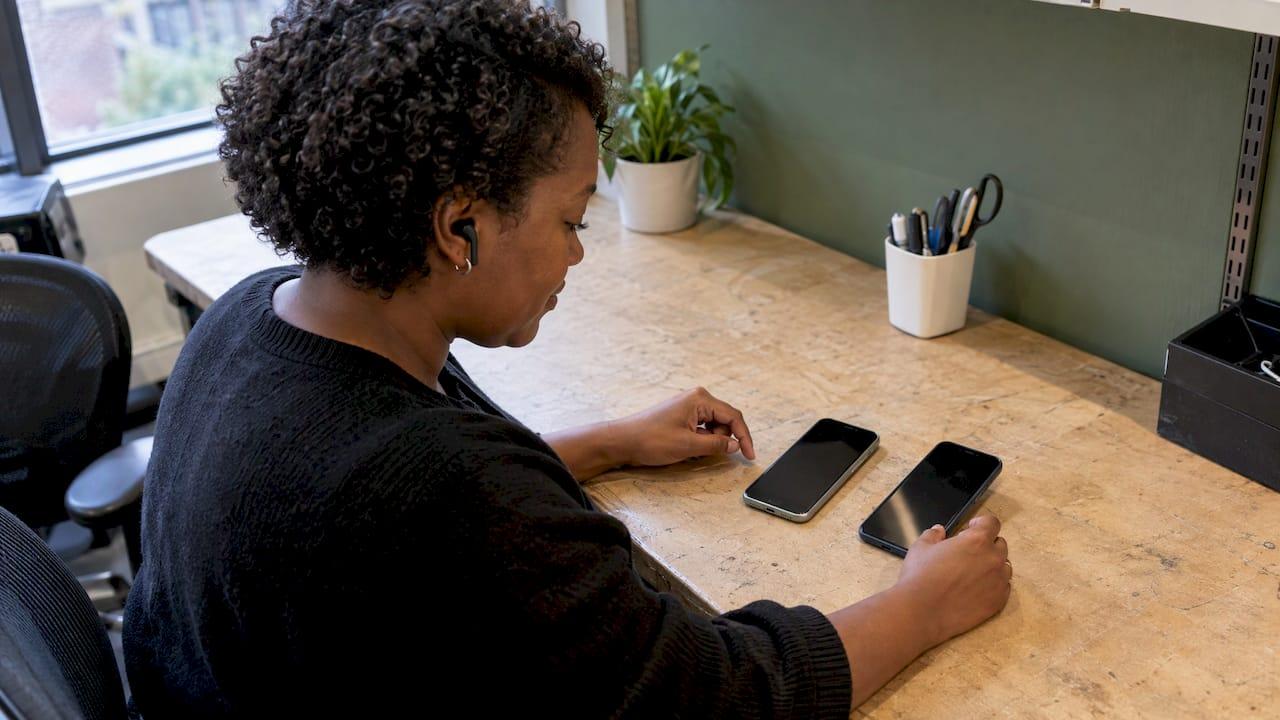
VoiceOver (Apple's screen reader for iOS) and TalkBack (Google's for Android) should be tested separately, on real phones, by someone who walks every screen and flow with the screen on and the screen reader running. Automated scanners cannot do this for you. The cheapest time to do it is during design and build, not after launch. That is why we build accessibility checks into each stage of an app project, and why this guide is written for the people who commission apps: you do not need to operate a screen reader yourself, but you do need to know what good testing looks like.
TL;DR
- Test iOS with VoiceOver and Android with TalkBack. They are different products with different behaviour, so a pass on one says little about the other.
- Use physical devices and walk every screen and journey, not just the home screen.
- Check labels, reading order, focus, announcements of state changes and whether every action can be completed without seeing the screen.
- Automated tools catch only part of the problem. Reading order, focus after pop-ups and state announcements need a human.
- Test during prototyping and each build cycle, and retest after every release that changes screens.
Table of Contents
- What VoiceOver and TalkBack testing actually checks
- Why you need to test both platforms
- How to test with TalkBack on Android
- How to test with VoiceOver on iOS
- What to listen for on each screen
- What automated checkers miss
- Testing on real devices, and with whom
- Where testing belongs in an app project
- Fixing what you find
- Our view on screen reader testing
- Working with us on your app
- A simple test plan you can brief tomorrow
- FAQ
- Sources
What VoiceOver and TalkBack testing actually checks
A screen reader speaks aloud what is on the screen and lets someone who is blind or has low vision move through it by swiping and tapping. Testing with one answers a simple question: can a person finish your key journeys (sign up, search, buy, donate, book) without seeing anything?
In practice you are checking five things:
- Every control has a meaningful name. A button should be announced as what it does, not as "button 4" or an image file name.
- The reading order makes sense. Content should be read in the order a sighted person would take it in.
- Focus behaves. The screen reader's cursor should land where you expect after a screen change, and never get stuck.
- Roles and states are announced. The user should hear whether something is a heading, a button, expanded, selected or switched on.
- Nothing depends on sight or gestures alone. Anything done by a complex gesture needs a simple alternative.
The BBC's guidance on focusable elements frames the first test clearly: with VoiceOver on iOS or TalkBack on Android switched on, each actionable element must be reachable by touch and by swiping through the focus order.
Why you need to test both platforms
It is tempting to test the platform your team uses and assume the other follows. It does not. Even when two apps share a visual design, they are separate pieces of software with separate code, and each screen reader presents them in its own way. A button can be announced correctly by VoiceOver and as a generic item by TalkBack if the developer set the label but missed the Android role.
The two screen readers also differ in how people move through content. VoiceOver users have a rotor, a dial gesture for jumping by headings, links or other element types. TalkBack has its own reading controls and menus. Testing on one will not reveal how the other reads the same screen.

The UK government treats this as standard. GOV.UK's accessibility monitoring guidance says mobile app tests follow the same process as detailed audits, cover both the Android and iOS versions and assess them against WCAG A and AA success criteria. WCAG, the Web Content Accessibility Guidelines, is the international standard that most accessibility requirements point to. Our own guide to applying WCAG 2.2 to native and hybrid apps covers how it maps to mobile builds.
If your budget forces a sequence, start with the platform most of your customers use, then bring the other up to the same standard. Both still need their own fixes.
How to test with TalkBack on Android
This is the routine in Android's own testing documentation.
- Turn it on. Open Settings, go to Accessibility, select TalkBack and press the On/Off switch. Confirm the permissions.
- Open your app and swipe. Swipe right through each element in sequence. This is linear navigation. Double-tap to activate the selected item.
- Try explore by touch. Drag a finger across the screen to hear what is under it. This shows whether touch targets match what is spoken.
- Make the speech visible. In developer settings you can turn on "Display speech output" so the spoken text appears on screen. That helps a non-specialist reviewer, such as a product owner or designer, follow what a user would hear.
- Walk the whole journey. Do not stop at the first screen. Register, log in, change a setting, complete a transaction and recover from an error.
While you do this, note three things on every screen: whether each element's label is clear, whether the order is logical and whether anything is skipped.
One practical caveat from MDN's mobile accessibility guide: some manufacturers, Samsung among them, ship their own screen reader on newer phones rather than TalkBack. Check which one your test device actually runs.
How to test with VoiceOver on iOS
On an iPhone, go to Settings, then Accessibility, then VoiceOver, and turn it on. The gestures change once it is running, and MDN lists the ones you need:
- A single tap selects an item and speaks it.
- Swiping left or right moves to the previous or next item.
- A double-tap activates the selected item.
- A three-finger swipe scrolls.
- A two-finger tap performs a context action.
With those in hand, repeat the same journey you ran on Android. Then use the rotor to jump by headings and check that your screen titles and section titles are really announced as headings. Headings are what let a screen reader user skim a long screen instead of listening to every line.
Working through the same script on both platforms lets you compare results side by side, which is useful when you brief a development team on what to fix.
What to listen for on each screen
Real apps fail in predictable ways. The GOV.UK One Login app accessibility statement is a useful example because a UK government team tested a live app manually with device accessibility features on iOS and Android and published what it found. The issues it lists include:
- focus getting stuck on the previous screen;
- some interactive elements and icons not being announced;
- some headings not announced as headings;
- a button that could not be reached because focus was stuck.
The statement ties these to specific WCAG criteria: 2.4.3 Focus Order, 2.4.7 Focus Visible and 4.1.2 Name, Role, Value. You do not need to memorise the numbers, but it helps to know that each of these problems maps to a named standard, which makes findings easy to track in a bug list.
A working checklist for each screen:
| What to check | What good sounds like | Typical failure |
|---|---|---|
| Labels | "Add to basket, button" | Reads an image file name or just "button" |
| Reading order | Follows the visual flow top to bottom | Jumps around in grids or overlapping elements |
| Headings | Announced as a heading | Read as plain text, so no jumping by heading |
| Focus after a pop-up or screen change | Moves to the new content | Stays on the screen underneath |
| States | "Expanded", "selected", "on" | Change happens silently |
| Gestures | A simple tap alternative exists | Swipe-only or shake-only actions |
| Form fields | Name, type and "required" are spoken | Placeholder text only, error not announced |
The BBC's guide to labelling form controls adds a detail worth knowing: VoiceOver reads an asterisk as "star", so a required field should say "required" in its label instead.
What automated checkers miss
Automated scanners are worth running because they find missing labels and low contrast quickly. They are not a substitute for a screen reader walk-through. GOV.UK's monitoring approach pairs an automated tool with manual checks of the barriers that tools miss: keyboard access to every element, keyboard traps, visible focus, logical focus order and unexpected actions on focus.
The Government Digital Service also explains in its post on how mobile apps undergo accessibility monitoring that when testers cannot see an app's code, they spend more time with the phone's built-in screen reader, VoiceOver on iOS and TalkBack on Android, than they would for a website. It also notes that apps mixing native and web content can behave differently inside the web portions, for example in text resizing and keyboard support.
So a sensible split is:
- Automation: quick checks on every build for missing names and obvious contrast problems.
- Manual screen reader testing: reading order, focus after transitions, state announcements, headings and the end-to-end journey.
Testing on real devices, and with whom
Emulators and simulators are fine for a developer's quick look, but a conformance-grade check belongs on physical phones, running the current operating system and a recent previous one. The BBC's assistive technology testing guide lists TalkBack on Android with Chrome and VoiceOver on iPhone with Safari as the minimum mobile combinations, adds the speech-control tools Voice Access (Android) and Voice Control (iOS), and recommends testing with the latest version available during development and UX review as well as before release.
If your team is new to this, the UK Department for Work and Pensions publishes assistive software testing templates covering iOS VoiceOver and TalkBack on Android, aimed at people new to assistive software. They are a good starting script for an internal walk-through.
Once you have a script, add people who use screen readers every day. Their habits (how fast they listen, which gestures they use, how they jump about) expose issues a sighted tester working slowly will not.
Where testing belongs in an app project
Most accessibility failures are cheap to prevent and expensive to repair. A missing label is a one-line fix while the screen is being built. A reading-order problem caused by an overlapping layout can mean redesigning the screen once it has shipped.
We organise app projects around four stages: Discover, Design, Develop and Deploy. Our process is where accessibility gets planned in, and a screen reader pass fits at each stage:
- Discover: agree which journeys matter most and which platforms and operating systems you must support. These become the test script.
- Design: review interactive prototypes for reading order, heading structure and touch targets before any code exists. Our guide to reachable mobile UI patterns covers the layout side.
- Develop: run VoiceOver and TalkBack checks inside each agile build cycle, so problems are found while the code is fresh.
- Deploy: run a full end-to-end pass on both platforms before release, then retest after any update that changes screens.
Because we recommend the right technology for each project rather than defaulting to one, the testing plan follows the build: native components, which inherit much of the operating system's built-in accessibility, or cross-platform builds, which need platform-specific checks. Chris Heathcote of the UK government's Accessibility Monitoring team makes the same point in his post on accessible mobile apps: native components normally inherit the system's accessibility features, but developers should still check how each one reacts to screen readers and keyboard or switch input.
Fixing what you find
A finding is only useful if the developer can act on it. Write each one with the platform, the screen, the steps to reproduce, what was spoken and what should have been spoken. Keep iOS and Android findings separate, because the fix lives in different code.
The BBC's guidance gives the typical remedies:
- iOS labels: set the accessibility label to match the visible text and apply the right control trait. Hide a separate visible label from the screen reader so it is not announced twice.
- Android labels: associate the label with its field using
android:labelFor, and use a content description where the spoken text must differ from the visible text. - Focus: on iOS mark meaningful content as an accessibility element. On Android set
android:focusableto true andimportantForAccessibilityto yes. Then retest reachability by touch and by swipe.
For a product owner, the key point is the finding format, not the code. If a report simply says "fails screen reader", it will bounce between teams. If it names the screen, the platform and the expected announcement, it gets fixed.
Our view on screen reader testing
Most clients first ask about accessibility late: a month before launch, or after a complaint. By then the layouts are fixed, the navigation is built and every change is expensive.
We think the better route is to treat VoiceOver and TalkBack as part of the definition of done. Across more than 300 projects for brands in retail, charity, healthcare and more, the pattern we trust is simple: decide the key journeys in discovery, review the prototype by ear as well as by eye, and test each build on real iOS and Android devices.
That is also why we like having design, development and post-launch support under one roof. The person who sketched the screen hears how it reads, and the person who fixes it sees the same finding. Nothing is lost in a hand-off.
If you already have an app, an accessibility review is a sensible use of a Mobile App Clinic. If you are planning one, put it in the brief from day one.
Paul
Working with us on your app
If you are commissioning a new app, or want an existing one reviewed, we can plan screen reader testing into the work from discovery through to deployment, and continue with maintenance, analytics and feature updates after launch. You can see how a project runs on our Discover, Design, Develop and Deploy process page. If you already have an app and want an expert look at it, our Mobile App Clinics are the place to start.
For wider background, our guides on app accessibility and mobile UX audits explain how screen reader results fit into a broader review.
A simple test plan you can brief tomorrow
If you want to start before any specialist is involved, give your team this one-page plan:
- List the five journeys that matter most to your users or your revenue.
- Pick two current phones, one iPhone and one Android phone, and note the operating system and screen reader on each.
- For each journey, run it start to finish with the screen reader on and the screen dimmed or turned away, so the tester relies on what is spoken.
- Log each problem with platform, screen, steps, what was heard and what was expected.
- Rank by whether the user can still complete the journey. A journey that cannot be finished is a blocker.
- Fix, retest on the same device and keep the script for the next release.
That plan will not replace a full audit, but it gives you evidence to work with, and it is the same structure a professional report follows.
FAQ
Do I need to test with both VoiceOver and TalkBack?
Yes, if your app is on both iOS and Android. They are different codebases with different screen readers, so the same screen can sound right on one and wrong on the other. Test the platform with most users first if you must, then bring the other to the same standard.
Can I use an emulator instead of a real phone?
Emulators are useful for a developer's quick look, but they do not reproduce screen reader behaviour reliably enough for a proper check. Test on physical devices, using the screen reader your users have. Remember that some Android makers ship their own screen reader instead of TalkBack.
How do I turn TalkBack off again?
Go back to Settings, then Accessibility, then TalkBack, and press the On/Off switch, as described in Android's testing documentation. Gestures are different while TalkBack runs, so you will need to double-tap to confirm. Do the same for VoiceOver in its Accessibility settings on iPhone.
Can automated tools replace manual screen reader testing?
No. Automated tools find some issues, such as missing labels, but they cannot judge whether reading order is sensible, whether focus lands correctly after a pop-up or whether state changes are announced. GOV.UK pairs an automated tool with manual checks for exactly these reasons.
When should we test during an app project?
At every stage: on prototypes before build, in each build cycle and in a full pass on both platforms before release. Retest whenever an update changes screens or navigation.
Sources
- Test your app's accessibility, Android Developers
- Mobile accessibility, MDN Web Docs
- Focusable elements, BBC Accessibility for Products
- Labelling form controls, BBC Accessibility for Products
- Testing with assistive technology, BBC
- GOV.UK One Login app: accessibility statement
- Accessibility monitoring: how we test, GOV.UK
- How mobile apps undergo accessibility monitoring, GDS
- Making great accessible mobile apps, GDS
- Assistive software testing, DWP Accessibility Manual