
Biometric authentication apps let you prove who you are on a device using fingerprints, face or iris scans, replacing or strengthening the password you'd normally type. They suit anyone who wants faster, safer logins, and developers building passwordless or re-authentication flows into their own products. The trade-off is simple: biometrics beat passwords for convenience and phishing resistance, but they're only as strong as the fallback and threat model behind them.
TL;DR:
- Biometric authentication apps store cryptographic templates on-device inside secure hardware, never transmitting raw images or fingerprints to servers.
- Facial recognition systems, especially with depth sensing, typically provide better spoof resistance than fingerprints, but performance varies with environment and user conditions.
- Always set a strong passcode before enabling biometrics, as it acts as the essential fallback in case of lockouts or hardware issues.
- Developers should implement biometric authentication with proper fallback options, test across a range of devices, and monitor failure rates to prevent support problems.
- Using passkeys with biometric unlocking offers superior phishing resistance and reduces reliance on centralized credential storage, enhancing security.
Table of Contents
- What biometric authentication apps actually do
- Fingerprint, face or iris: which biometric method wins?
- How to enable biometric authentication on your phone
- Developer guide: implementing biometrics properly
- Where your biometric data actually lives
- Passkeys and the passwordless shift
- Practical recommendations for individuals and developers
- Regulatory and compliance aspects of biometric data
- Comparing today's biometric authentication apps
- Pocketapp's perspective: lessons from real app projects
- Building biometric authentication into your next app
- Sources
- FAQ
What biometric authentication apps actually do
At the simplest level, biometric authentication apps replace a typed credential with something you already carry: your fingerprint, face, or iris pattern. That single function branches into several everyday jobs, and it helps to separate device unlock (getting past your lock screen) from app-level gating (a specific app asking for a fresh biometric check before it lets you in or approves an action).
Common uses include:
- Unlocking a phone or tablet without a PIN
- Gating access to sensitive apps like banking or health records
- Authorising payments, from contactless purchases to in-app checkouts
- Enabling passwordless sign-in through an authenticator app instead of a password field
A retail app might use device unlock as sufficient proof to browse, but require a fresh biometric prompt before confirming a purchase. Enterprise apps often go further, pairing biometric gating with device-level policies so a lost phone can't expose a company system even if the lock screen is bypassed.
Fingerprint, face or iris: which biometric method wins?
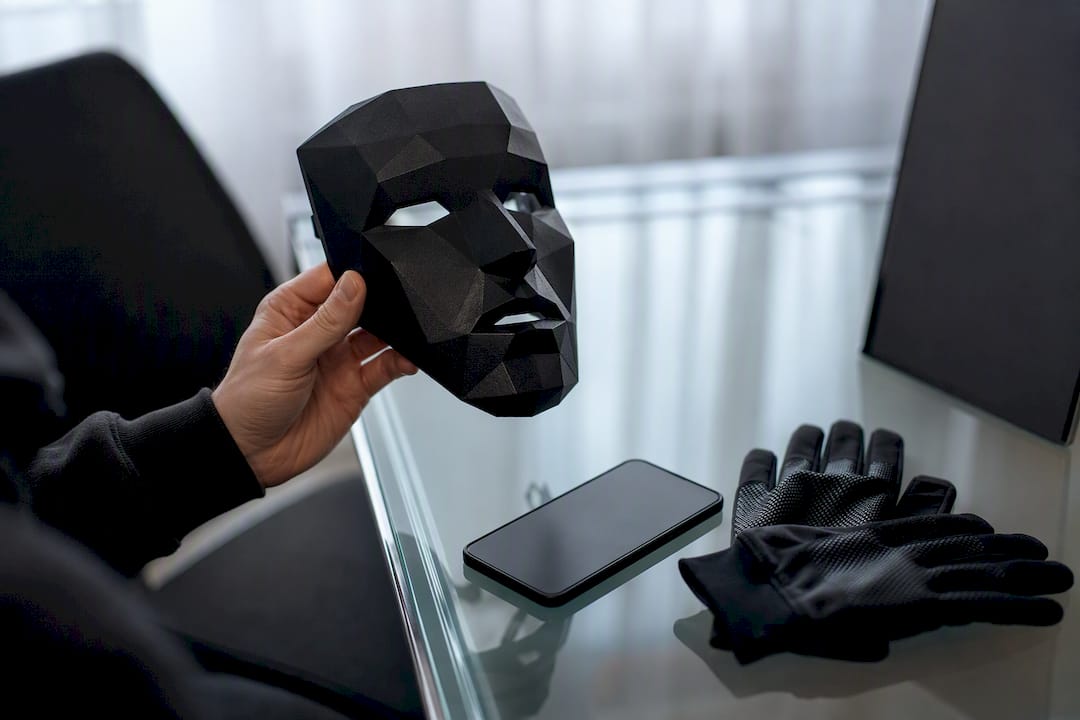
No single method wins outright. Fingerprint and facial recognition dominate consumer devices, and each carries genuinely different strengths depending on your environment and threat model.
Fingerprint sensors work well in low light and don't require you to look at the phone, but they struggle with wet or gloved hands. Facial recognition, particularly systems using depth-sensing cameras, generally offers stronger spoof resistance than fingerprint scanning because it can detect three-dimensional facial structure rather than a flat image, though a mask or poor lighting can still trip it up. Face ID and Touch ID both store data as cryptographic templates in the Secure Enclave rather than raw images, and the right choice depends on how and where you'll actually use the device.
Pro Tip: If you work with gloves, in a lab, or somewhere hygiene rules discourage bare-hand scanning, prioritise face-based systems over fingerprint sensors when choosing a device.
Iris scanning sits above both for raw assurance and appears mainly in high-security enterprise and border-control contexts rather than mainstream consumer phones, where the hardware cost and user friction rarely justify it.
How to enable biometric authentication on your phone
Setting up biometrics takes minutes, but the order of operations matters more than most people realise.
- Set a strong device passcode first. Every biometric system needs this as its fallback, so a weak four-digit PIN undermines the fingerprint or face scan sitting on top of it.
- On iOS, go to Settings, then Face ID & Passcode (or Touch ID & Passcode), and follow the enrolment prompts.
- On Android, go to Settings, then Security (or Biometrics and security, depending on manufacturer), and add a fingerprint or face profile.
- Review enrolled biometrics periodically and delete old fingerprints or faces you no longer use, especially on shared or resold devices.
- If you're repeatedly locked out, use the passcode fallback rather than retrying the sensor, and contact the device manufacturer's support if the sensor itself seems faulty.
Persistent lockouts after a screen replacement or software update usually point to a hardware calibration issue rather than user error, worth mentioning if you contact support.
Developer guide: implementing biometrics properly
Building biometric authentication into an app means choosing the right platform API and, just as importantly, planning for the moments it fails.
On Android, use androidx.biometric and its BiometricPrompt class. Call setAllowedAuthenticators to specify whether you need Class 3 (strong, hardware-backed) biometrics or will accept Class 2 (weak) as a fallback, since BiometricPrompt supports both tiers plus device credential fallbacks. Requiring Class 3 without checking device capability at runtime is a common cause of failures on cheaper hardware that only supports Class 2, so detect and degrade gracefully rather than hard-coding the strongest requirement.
On iOS, the LocalAuthentication framework handles the prompt, while actual key material stays inside the Secure Enclave and the keychain, never touching your servers.
On the web, WebAuthn and FIDO2 are the standards to build against for passkeys, letting the browser handle the biometric unlock locally while your backend only ever sees a public key. Android's Credential Manager is worth using for initial sign-ins, reserving BiometricPrompt for re-authentication or cryptographic operations further into a session.
Practical points worth building in from day one:
- Always offer a PIN or passcode fallback, never a biometric-only path
- Add retry limits with clear messaging rather than silent failures
- Test across a spread of real hardware, not just flagship devices
- Instrument failure rates, since high biometric failure rates correlate with rising support costs and lower feature adoption
Pro Tip: Log biometric failure events separately from generic auth errors. That single change makes it far easier to spot whether a spike is a bug, a hardware batch issue, or users simply enrolling incorrectly.
Where your biometric data actually lives
Your fingerprint or face scan almost never leaves your device, and understanding this distinction matters more than most privacy discussions suggest.
Biometric templates are stored on-device inside a Secure Enclave or Trusted Execution Environment as mathematical representations, not photographs or fingerprint images. A well-built app never uploads raw biometric data to a server; it only ever sees the result of a local match, such as a cryptographic key release or a simple pass/fail signal.
That architecture is precisely why platform vendors and developers alike lean on Secure Enclave and TEE hardware. Good practice includes:
- Minimising server-side biometric data entirely, replacing it with public keys or attestation tokens
- Treating the biometric as a key-release mechanism, not a data payload to transmit
- Recognising that spoofing and coercion (someone forcing a face or finger onto a sensor) remain real threats a passcode doesn't share
Legal treatment differs too. Courts in several jurisdictions have drawn a distinction between compelling someone to unlock a device with a fingerprint and compelling a memorised passcode, treating the latter as testimonial and therefore harder to force. Worth knowing before you assume biometric-only security is equivalent to a strong passcode in every scenario.
Passkeys and the passwordless shift
Biometrics are increasingly the local key that unlocks something bigger: the passkey. Rather than sending a password to a server, FIDO2 and passkey standards rely on public-key cryptography, where your fingerprint or face only unlocks a private key stored on your device, while the server ever sees just a public key or a signed assertion.
That matters for two reasons:
- Phishing resistance: there's no shared secret for an attacker to steal from a breached database
- No centralised credential store to compromise: each device holds its own key pair
For developers, the practical takeaway is to integrate WebAuthn wherever cross-device sign-in is required, letting passkeys generated on one device be usable across others through the same account, without ever handling a password field again.
Practical recommendations for individuals and developers
Whether you're setting up a personal phone or shipping a login flow, the checklist is short.
- If you're an individual: choose a device released within the last few years for stronger biometric hardware, always set a strong backup passcode, and switch to passkeys wherever a service offers them.
- If you're a developer: require Class 3 biometrics for signing operations, use Credential Manager and BiometricPrompt for their intended purposes rather than interchangeably, and never skip a secure PIN fallback.
- Watch for red flags: don't rely on biometrics alone for high-value transactions in adversarial contexts, such as shared devices or environments where coercion is plausible.
Pro Tip: If your app handles financial transactions or health data, pair biometric gating with a secondary check for high-value actions specifically, not just at login.
Regulatory and compliance aspects of biometric data
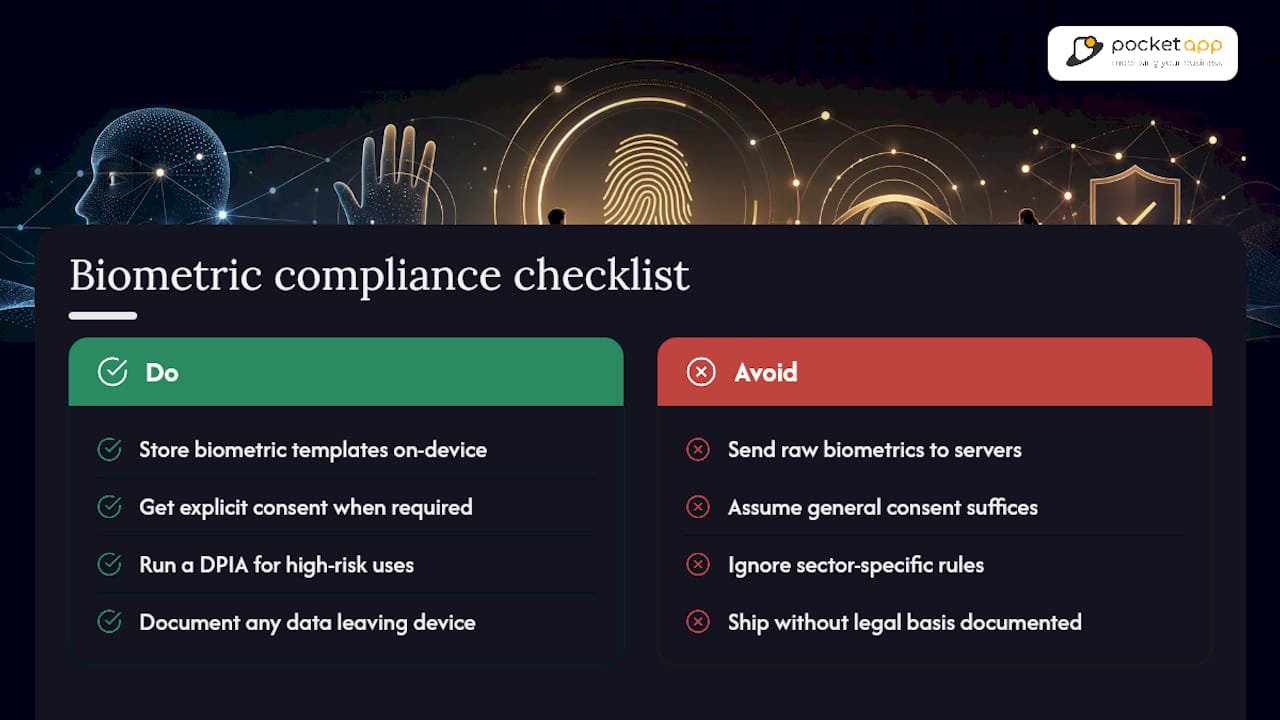
Biometric data sits in a stricter regulatory category than most personal information because, unlike a password, you can't reset your fingerprint if it's compromised. In the UK, biometric data counts as "special category data" under the UK GDPR, which means processing it generally requires explicit consent or another narrowly defined legal basis, plus a documented data protection impact assessment for higher-risk uses.
For developers building apps that touch biometric data, the practical compliance path is straightforward even if the legal detail is dense: keep biometric templates on-device wherever technically possible, since data that never leaves the device or reaches a server is far easier to defend from a compliance standpoint than anything transmitted or stored centrally. Regulatory regimes elsewhere illustrate how seriously biometric and health-adjacent data gets treated; HIPAA in the United States, for instance, sets strict controls around health information handling, and while it's US law rather than a UK framework, it's a useful reference point for the level of care regulators expect around sensitive personal data generally.
Sector-specific rules can stack on top of general data protection law. Financial services apps face additional scrutiny from payment regulators, and health apps handling biometric identifiers alongside medical data may trigger both UK GDPR special category rules and sector guidance simultaneously. The safest default for any product team is to document exactly what biometric data (if any) leaves the device, why, and under what legal basis, before a single line of production code ships.
Comparing today's biometric authentication apps
The market roughly splits into three categories, and picking between them depends on what you're actually trying to solve.
Platform-native systems, Face ID and Touch ID chief among them, are built into iOS and Android and handle device unlock and app-level gating without any separate download. They're the default for most personal use because Secure Enclave-backed storage on both platforms already meets a high security bar, and user reviews consistently favour Face ID for hands-free convenience while long-time Touch ID users often cite reliability in situations where covering your face isn't practical, such as wearing a mask.
Dedicated authenticator apps add a layer on top. Microsoft Authenticator, for example, supports passwordless sign-in, two-step verification, and one-tap approval prompts, all gated by the phone's own biometric sensor rather than a separate credential. This category suits anyone managing several accounts across an organisation, where a single authenticator app centralises approvals without asking for a password at every login.
Passwordless platform apps go a step further, converting the smartphone itself into a FIDO2 passkey generator. HYPR's platform is one example, built specifically to replace legacy multi-factor authentication with biometric-backed passkeys, aimed more at enterprise deployment than casual personal use. For everyday users, platform-native biometrics and a mainstream authenticator app cover the vast majority of real-world needs; passwordless platforms matter most once an organisation is managing authentication at scale.
Pocketapp's perspective: lessons from real app projects
Across genuine mobile builds, the same two mistakes recur: apps that treat biometric gating as security without a proper fallback, and teams that assume biometric templates can safely sit on a server. Neither holds up. A locked-out user with no passcode route abandons the app; a server holding biometric data becomes a liability the moment it's breached.
Scoping a secure integration brief starts with one question: what happens when the biometric check fails? Get that answer right, alongside platform-native storage and sound data-handling practice, and the rest of the build follows naturally.
— Paul
Building biometric authentication into your next app
Pocketapp is the practical alternative to bolting on a third-party SDK and hoping it holds up under real-world testing. Where many teams discover fallback gaps and platform inconsistencies only after launch, our discovery-led process maps device coverage, failure paths, and compliance needs before a single screen gets built.
An engagement typically starts with a discovery workshop scoping your authentication requirements, moves through secure design covering Secure Enclave and TEE storage patterns, and continues through cross-platform development and hardware testing across real Android and iOS devices, not just flagship models. We handle the WebAuthn and BiometricPrompt implementation detail so your team doesn't have to debug Class 2 versus Class 3 authenticator mismatches in production.
If you're planning biometric or passkey authentication for an upcoming build, get in touch through our mobile app development page and we'll scope what secure, well-tested integration looks like for your specific product.
Sources
- Biometric authentication for Android apps - Android Developers
- About Microsoft Authenticator
- FIDO Alliance passkey pledge
- HYPR Authenticate App - HYPR platform
- Face ID vs Touch ID: Which makes more sense? - PanicVault
FAQ
What are the top biometric or authenticator apps?
Platform-native systems (Face ID, Touch ID) cover most personal device needs, while dedicated apps like Microsoft Authenticator add passwordless sign-in and approval prompts, and enterprise-focused platforms like HYPR convert phones into FIDO2 passkey generators for organisation-wide deployment.
What is the best biometric authentication method?
There's no universal best method: facial recognition with depth sensing generally offers stronger spoof resistance than fingerprint scanning, but fingerprint sensors work better in low light and with gloves off, so the right choice depends on your device, environment, and threat model.
How do I enable biometric authentication on my phone?
Set a strong passcode first, then on iOS go to Settings, then Face ID & Passcode, or on Android go to Settings, then Security, and follow the fingerprint or face enrolment prompts.
What is the best authenticator app to use?
Microsoft Authenticator remains one of the most widely used options, supporting passwordless sign-in, two-step verification, and one-tap approvals through your device's own biometric sensor, and it works well alongside platform-native Face ID or Touch ID rather than replacing them.
Are biometric authentication apps safer than passwords?
Generally, yes, because biometric templates stay on-device in a Secure Enclave or TEE and can't be stolen from a breached server the way a reused password can, but they still need a secure passcode fallback to avoid being the single point of failure.